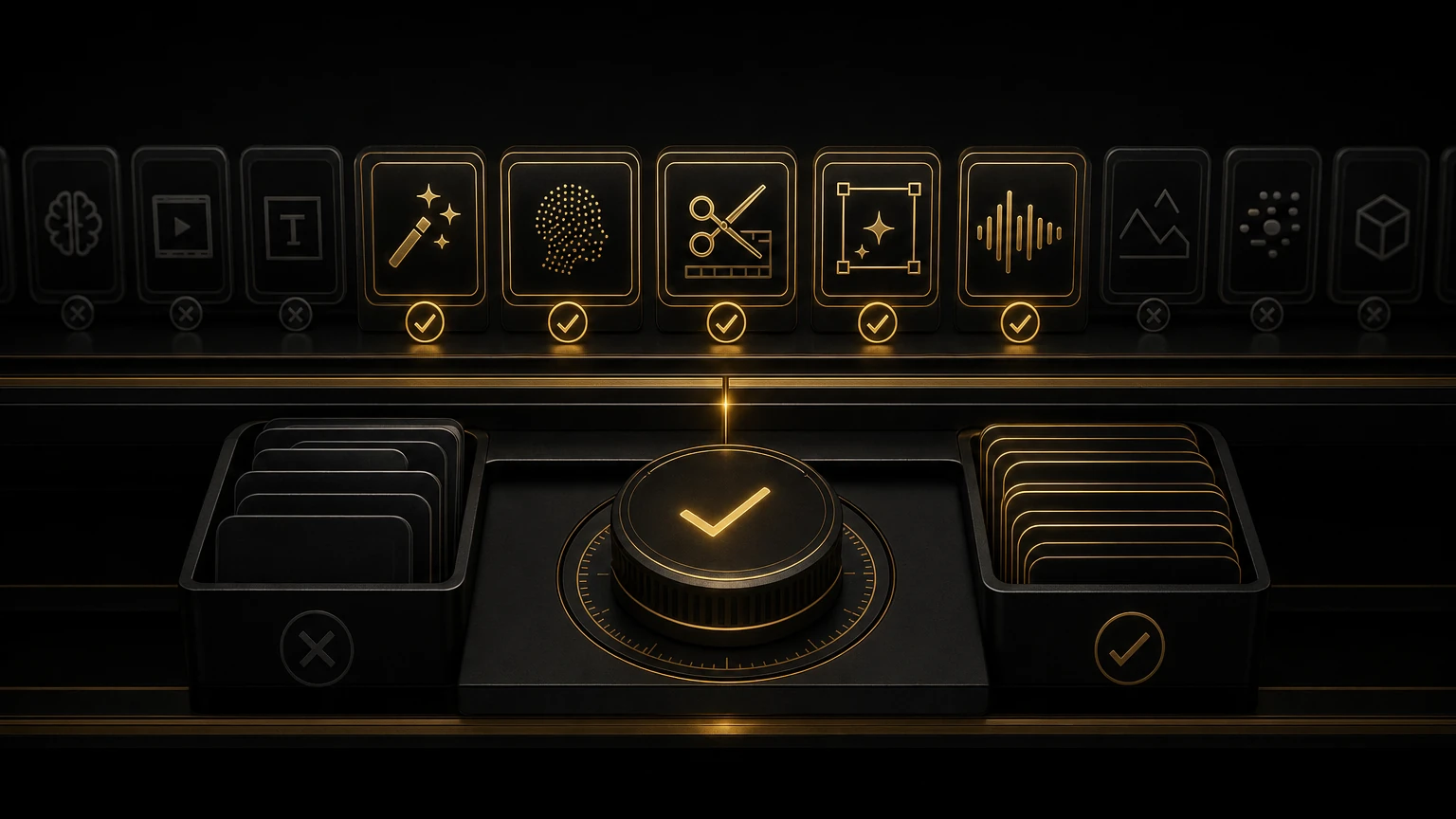
AI Editing Tools Worth Using (and Ones to Skip)
A software company emailed me last week claiming their AI could "revolutionize your editing workflow with cutting edge machine learning technology." I clicked through. The tool auto-generates subtitles. That is it. Just subtitles. Revolutionary, apparently.
We are deep in the AI hype cycle for video editing. Every week brings a new tool promising to transform how we work, and most of them are either disappointingly narrow or functionally useless. I have spent the past year testing dozens of them on real client projects. Most did not survive my first session. A handful earned a permanent place in my workflow.
Here is the honest breakdown: what is worth your time, what is overhyped, and what you should ignore completely.
Transcription and Text-Based Editing
The hype says you can edit video like a Word document. The reality is closer than most categories, but it is not magic. You still need to understand what you are cutting. The transcript just helps you find it faster.
Premiere Pro's native transcription is solid for English-language content. It is built in, synced to the timeline, and supports basic text-based editing: highlight text to create subclips, delete text to delete video, search transcripts for keywords. Accuracy runs 90 to 95 percent on clean audio, so you need a review pass but not a full redo.
I reach for AI Editor when Premiere's native transcription falls short, which happens often. It handles languages Premiere does not support (Polish comes up regularly in my work), the accuracy on accented English is noticeably better, and it surfaces the clips it is most confident are usable so I can review them faster. Transcription is the entry point. The real value is how it connects that transcript to the actual editing process: searchable, exportable in multiple formats, built around finding moments in long footage instead of scrubbing through it. I broke down the full workflow in transcript-first editing.
Descript deserves a mention too. It is the most mature dedicated text-based editor, and if you mostly cut podcast-style content it is excellent. Editing audio by editing text is smooth and genuinely changes how you work. The downside is it works best as a standalone tool; folding it into a Premiere or Resolve pipeline adds friction. I use it for podcast video, not complex multi-layer edits.
My rating: 9 out of 10. Transcription AI is the one category where AI has genuinely changed editing for the better. Every editor should be using some version of it.
Audio Cleanup and Enhancement
The hype promises studio-quality audio from any recording. The reality: AI audio cleanup has gotten shockingly good, but it cannot fix audio that was never captured. It can make bad audio usable and good audio great.
Adobe Podcast's Enhance Speech is the best single-click dialogue enhancement I have used. Throw rough location audio at it and it comes back cleaner and more consistent. It is free right now, which makes it an easy add to any workflow. I run most dialogue through it before I start editing. It is built for speech, not music or environmental sound, so do not run your full mix through it.
iZotope RX is the professional standard for audio repair, and its AI-powered features (Dialogue Isolate, De-hum, De-reverb) are genuinely impressive. Dialogue Isolate can separate speech from background noise in ways that used to require re-recording. It is expensive, but if you regularly deal with rough location audio it pays for itself fast.
Krisp and similar real-time noise suppression tools are worth having for remote interviews. I run it during recording so a guest's background noise never hits the file. Good enough for most web content, not for broadcast work.
Keep the raw files
Always keep your original audio. AI processing is non-destructive in theory, but I have had "enhanced" audio come back with artifacts I did not catch until the final mix. Keep the raw files. Process copies. Trust me on this one.
My rating: 8 out of 10. It cannot recover clipped audio or add frequencies that were never recorded, but it turns unusable into usable often enough that I consider it essential. The free tools handle most of the load; RX handles the rest.
Auto-Captioning and Subtitle Generation
The hype: one-click captions in 99 languages. The reality: auto-captioning works well for simple content in major languages and struggles with technical terms, multiple speakers, and precise frame-level timing.
Premiere's auto-captions have improved a lot. For straightforward talking-head content in English they need minimal correction, and the whole workflow, generate, review, style, export, stays inside Premiere. Language support is limited to roughly a dozen languages, and accuracy drops with music beds or background noise.
CapCut's auto-captions are surprisingly good and free. Editors who will not touch CapCut for editing still use it purely for caption generation because the accuracy is strong and the styling is social-native. If you are burning captions in for TikTok, Instagram, or Shorts, it is worth keeping around even if you edit elsewhere.
Happyscribe and similar services add a human review pass, which is the only reliable way to get truly broadcast-ready captions. I use these when captions are a legal requirement rather than a nice-to-have.
My rating: 7 out of 10. Good enough for most social content and internal review, but I still check every caption file before it reaches a client, and anything legally sensitive gets a human pass.
Color Matching and Auto-Color
The hype: perfect color in one click. The reality: auto-color tools are improving, but they are still mostly a starting point, not a final grade.
Adobe's auto-color in Premiere and DaVinci Resolve's Color Match are both competent at fixing exposure and white balance on well-shot footage. If your footage was properly exposed in consistent light, auto-color gets you most of the way there, which is genuinely useful when speed matters more than a creative grade.
The problem is auto-color does not understand intent. It cannot tell the difference between a scene that looks warm because the lighting was warm and one that looks warm because the white balance was wrong. It does not know you want the flashback to look different from the present. It corrects toward neutral, which is often right and sometimes exactly wrong.
My rating: 5 out of 10. Useful for basic correction, not ready for creative work. If you color grade for a living, none of this threatens your job.
Auto-Edit Tools: The Category to Skip
The hype: AI that edits your video for you. The reality: these range from technically functional but creatively empty to genuinely bad. Every auto-editor I have tested produces something that looks like a video but does not feel like anything.
The pattern is always the same. The AI finds faces, detects speech, spots scene changes, and arranges clips in chronological order under a music bed. The result is coherent in the literal sense, you can watch it and follow what happened, but there is no story, no rhythm, no emotional arc.
The creative decisions that make editing good, when to cut, when to hold, what to emphasize, what to sacrifice, require understanding context, intent, and emotion. AI does not have those. It has pattern recognition, which is a different and lesser capability. I go deeper on where the line actually sits in should you let AI edit your video.
My rating: 2 out of 10. Skip them. You will spend more time fixing the output than editing properly from the start.
AI-Generated B-Roll and Stock Footage
The hype: never search for stock footage again. The reality: AI-generated clips are improving fast but are still limited to short durations, simple compositions, and specific styles. They are not replacing stock libraries yet.
I use AI-generated clips for abstract backgrounds, texture elements, and social content where perfection is not required. I would not use them for client work with high quality expectations. This is the category I am watching most closely; the rating below could look very different in a year.
My rating: 4 out of 10. Useful for narrow cases, not a general replacement for real footage or a solid stock library.
The One Tool I Use Every Day
If I had to keep exactly one AI tool, it would be AI Editor, specifically for transcription and moment-finding in interview footage.
Transcription is the entry point to everything else. It lets me search footage by keyword instead of scrubbing. It lets me share readable content with producers who do not want to watch raw video. It lets me build a paper edit before I ever touch a timeline. The confidence-ranked clip selection surfaces good takes I might otherwise miss in long footage. I used exactly this approach to cut a rough stringout down to something usable in a single afternoon, which I wrote up in the stringout workflow post.
I do not use it to make creative decisions. I use it to get to the creative decisions faster. That distinction matters. The AI handles the mechanical work: transcribing, scanning, flagging. I handle the editing: choosing, structuring, pacing. It is a division of labor that makes me faster without making me replaceable.
A Simple Framework for Evaluating Any AI Tool
Before I add any AI tool to my workflow, I run it through five questions.
- Does it make decisions for me, or does it give me information to make better decisions? Decision-support tools improve my work. Decision-making tools replace my judgment with something worse.
- Does it save time on the edit, or does it just shift the work to cleanup? Some time-saving tools generate output that takes longer to fix than doing it properly. Measure total time saved, not just the generation step.
- Does it fit into my existing workflow, or does it need a separate process? The best tools slot into Premiere, Resolve, or Final Cut without changing how I work. Tools that require round-tripping through a separate app eat into whatever time they save.
- Is the output good enough for a client, not just for a rough cut? Internal review has a lower bar than delivery.
- What happens when it fails? Every AI tool fails sometimes. Can I recover easily? Is my original footage safe? Can I finish the project without it?
The test I trust most: would I send this straight to a paying client, or would I need to spend an hour fixing it first? If it is the second one, the tool saved me nothing.
The Bottom Line
AI tools for video editing fall into three buckets right now.
- •Essential. Transcription (AI Editor, Descript, Premiere native) and audio cleanup (Adobe Podcast, RX). Mature, reliable, and saves real time every day.
- •Useful in specific situations. Auto-captions for social content, auto-color for fast turnaround, AI b-roll for backgrounds and texture. Know the limits and use them where they fit.
- •Skip. Auto-editors that claim to replace human judgment. They are not good enough for professional use, and fixing their output costs more time than it saves.
I covered the broader hype problem in AI for editors: hype vs useful.
The honest tools tend to make modest claims: we transcribe accurately, rather than we revolutionize your workflow. Trust the ones solving a specific, well-defined problem. Be skeptical of anything promising to think for you. Your judgment is still what clients are paying for. AI is just a faster way to apply it.
More from the Cut to the Point blog, including AI for editors: hype vs useful and should you let AI edit your video. If transcription and moment-finding are the piece you want to add first, take a look at AI Editor.
Share this article