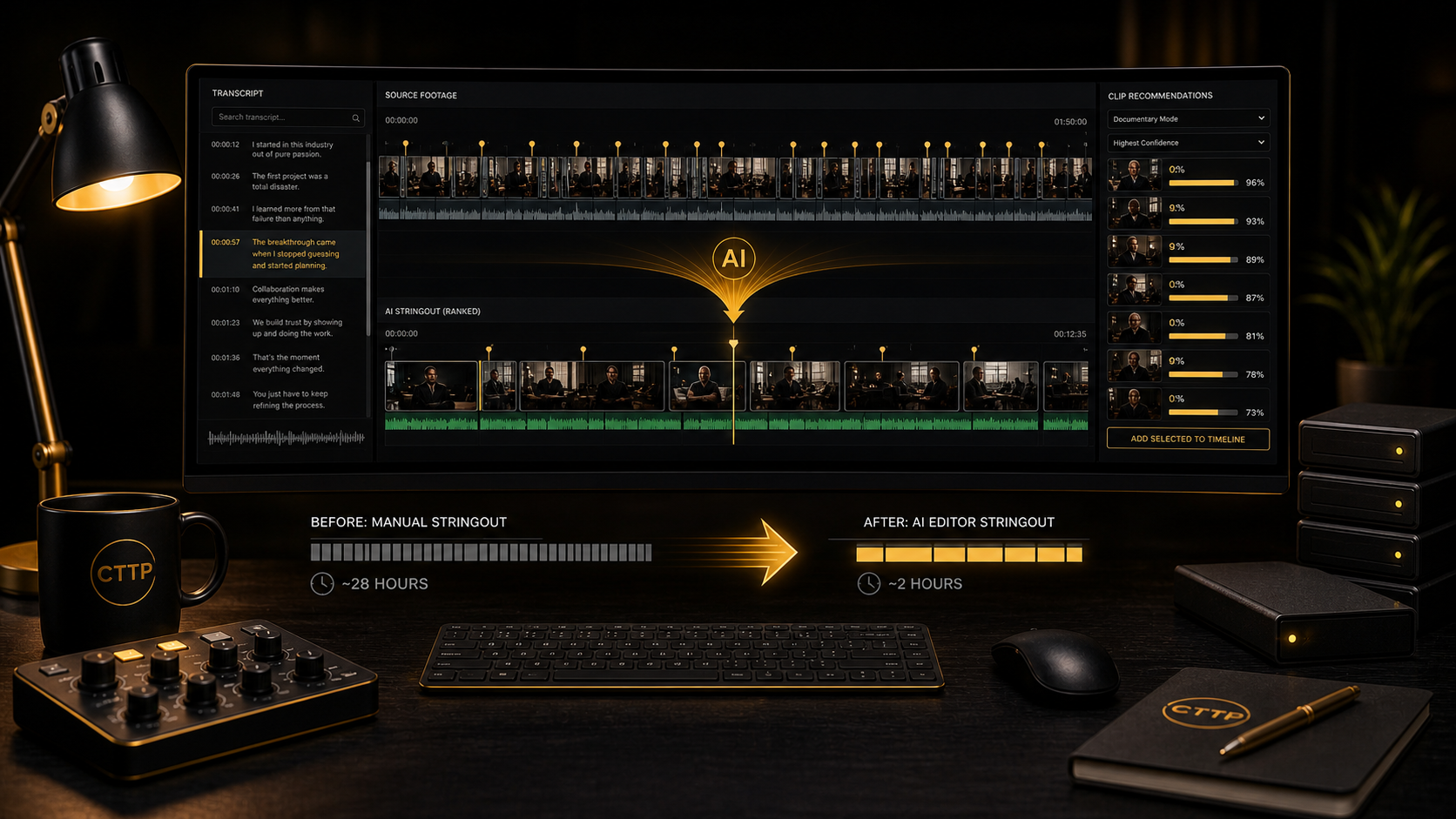
AI Editor Deep Dive: Cutting Stringout Time by 90%
I used to dread the stringout. Forty hours of interview footage, a producer asking for a rough assembly by Friday, and bins full of clips with names like A_CAM_INT_001 and SOUNDBITE_TAKE_3 that mean nothing until you actually open them. My old process ate three to four full workdays before any real editing even started.
Then I started using AI Editor and the math changed. I am not talking about a modest twenty percent improvement. I went from four days of stringout work down to about three hours. That is not a typo. Here is exactly how it works and how I fit it into my real workflow.
What AI Editor Actually Does (And What It Does Not)
Most AI editing tools are either glorified auto-cut features that produce robotic garbage, or they are so complex that setting them up costs more time than editing manually. AI Editor is neither. It is a clip selection and transcription tool that lives inside Premiere Pro, and it does not try to replace your creative decisions.
It does the thing that eats up most of your time before you ever get to be creative. It watches your footage, transcribes it, identifies the best takes based on what you tell it you are looking for, and serves them up in a ranked list. Think of it as a brutally efficient assistant editor who never gets tired, never misses a good line, and can process forty hours of footage while you grab coffee. If you have not set it up yet, you can grab it from the AI Editor page.
The Prompts I Actually Use
AI Editor comes with a set of built-in selection prompts. Picking the right one for your content matters more than it sounds.
How I think about each prompt
- •Powerful One-Liners. Punchy, quotable moments. The short, self-contained statements you pull for social, sizzle reels, or the quick soundbites that open a scene.
- •Documentary Selects. The heavy hitter. It analyzes longer conversational segments and ranks them by confidence, looking for narrative weight: emotional reveals, clear explanations, conflict, resolution, humor. This is my default for any interview-heavy project.
- •Interview Highlights Extractor. Strong, insightful responses and memorable moments. Good when you want anchoring quotes that would survive the final cut.
Pro tip: Powerful One-Liners works best when your subjects speak in complete sentences. If you have a lot of false starts and ums, run a cleanup pass on your audio first (my audio editing guide covers how), or expect to do more trimming on the back end.
Transcription: The Foundation Everything Builds On
The transcription engine is better than Premiere's built-in speech to text, in my experience. It is faster, handles crosstalk and accents more gracefully, and the timestamp accuracy matters because every clip recommendation is tied to precise timecode. Here is my setup process:
- Import and organize first. AI Editor works with your existing project structure, so if your bins are a mess, your output will be a mess. I organize by interview subject and date before I transcribe anything.
- Select your clips or sequences. You can run it on individual clips, selected ranges, or whole sequences. For documentary work I select all the interview clips from a single subject and run them in one batch.
- Choose your language and dialect. The engine supports multiple languages and regional accents. With non-native English speakers this setting makes a real difference in accuracy.
- Let it run. A two-hour interview takes three to five minutes on a decent machine. Forty hours? I start it before lunch and it is done when I get back.
- Review and correct. The transcript is not perfect, especially with technical jargon, names, or heavy accents. A quick scan to fix obvious errors takes about ten minutes per hour of footage and dramatically improves clip selection quality.
Pro tip: after transcription, do a quick scan for proper nouns and technical jargon. Correcting those before you run the selection improves clip quality because the AI reads the exact text when scoring.
The Confidence-Ranked Clip System
This is where AI Editor gets interesting. After transcription it scores every clip and moves it up in your Premiere timeline based on confidence level. It works directly inside the sequence: it razors at each clip's in and out point, then lifts matching clips to higher tracks. Nothing is deleted. The confidence level (1, 2, or 3) determines how far up each clip moves:
- •Confidence 3 (highest). Clips move three tracks up. Clear, complete thoughts that match the prompt strongly. Almost always going in my stringout.
- •Confidence 2 (medium). Clips move two tracks up. Strong candidates. I review these quickly and usually keep about sixty percent of them.
- •Confidence 1 (lower). Clips move one track up. The maybe pile. Often fragments that need trimming, but sometimes a gem the algorithm undervalued.
Every selected range also gets a sequence marker with a description of what the AI found. Clips that were not selected stay on track 1, untouched. It is a triage system, not an auto-cut.
Pro tip: do not ignore the lower confidence tracks. Some of my best clips land at confidence 1, moments that were technically incomplete sentences but emotionally powerful. The confidence levels get you eighty percent of the way there. Your judgment gets you the rest.
My Workflow, Before and After
Here are numbers from a recent project, a corporate documentary with several interview subjects and about forty hours of total footage.
The old way, about 28 hours
- •Watch and log all footage, marking good takes by hand. About 16 hours.
- •Assemble a rough stringout from the marked clips. About 8 hours.
- •Review, realize I missed things, dig back through the bins. About 4 hours.
With AI Editor, about 3 hours in one morning
- •Set up the project, organize bins, start the transcription batch. 30 minutes.
- •Correct transcription errors while the clip ranking generates. 45 minutes.
- •Review ranked clips, select what I want, drag to the timeline. 1 hour.
- •Listen through, reorder clips, fill the gaps. 30 minutes.
That roughly ninety percent time reduction is not an exaggeration. It is what happens when you stop searching for needles in haystacks and start working from a curated list of the best material. Here is the order I build the stringout in now:
- Transcribe everything in batches organized by subject.
- Select the Documentary Selects prompt and let AI Editor rank all clips by confidence.
- Review the top tier first. I click through the highest-confidence clips, listening to each one, and color label the keepers green.
- Scan the middle tier more quickly for thematic matches to what I already selected.
- Drag selects to the timeline in rough order. I do not overthink the sequence yet, I just get the good stuff down.
- Listen and reorder based on narrative flow. This is the creative part, and it is where my time is actually well spent.
- Fill gaps with transcript search when I need a specific quote I remember.
Keeping the Creative Work Yours
The biggest misconception about AI-assisted editing is that it removes creativity. In my experience it does the opposite. It gets you to the creative part faster. When I cut stringouts by hand, by day three I was too exhausted to think creatively. I was just trying to get through the footage. Now the mechanical work happens in hours, so I hit the stringout with full energy and make real decisions about story and pacing.
What has not changed: I still watch every clip that goes into my edit. I still make the final call on what works. I still reorder, trim, and refine on instinct. AI Editor just makes sure that when I sit down to do that work, I am starting from the best material available and I know where everything is.
Pro tip: use transcript search to find themes across your footage. If you need every mention of leadership across twelve interviews, a keyword search pulls up each instance with timecode. That used to take a full day. Now it takes two minutes.
Who This Is Actually For
AI Editor is not for everyone. If you cut thirty-second commercials with three takes, you do not need it. But if you are in any of these situations, it pays for itself fast:
- •Documentary editors working long-form interviews
- •Podcast editors cutting multi-hour conversations
- •Reality editors slogging through verite footage
- •Corporate editors pulling selects from executive interviews
- •Social editors batch-generating clips from long-form content
- •News editors working tight deadlines with lots of source material
The Bottom Line
AI Editor is a one-time payment. I made that back on the first project, not because I am billing more hours, but because I deliver better cuts faster. That means more projects, happier clients, and less time spent on the part of editing nobody enjoys. The stringout used to be a slog. Now it is a morning, and that changes how I approach a whole project.
If you want to try it, grab it from the AI Editor page. Start with a small project, get a feel for the workflow, and scale up from there. That is what I did, and I have not looked back.
More from the CTTP blog: pair this with my 24-hour turnaround workflow and the audio editing guide. When you are batch exporting the social clips AI Editor helps you find, Clip Exporter handles the whole queue in one pass.
Share this article