Transcript-First Editing: Find Moments Faster
I got a project last year with several hours of interview footage and a delivery deadline that did not care how long it would take me to watch it all. Multiple subjects, shot over a few days. The producer wanted a short sizzle reel. My usual approach, watch everything, mark selects, build from there, would have eaten my entire week.
So I did not do it. I had the footage transcribed and edited from the transcript instead. I finished the selects in about four hours. The producer never knew the difference, and the cut was better because I could see the whole project at once. Every sentence, every topic, every potential storyline, laid out as text. I was not scrolling through timelines anymore. I was reading. That is when it clicked that transcription is not just for captions. It is an editing interface.
Text-Based Editing in Premiere Pro
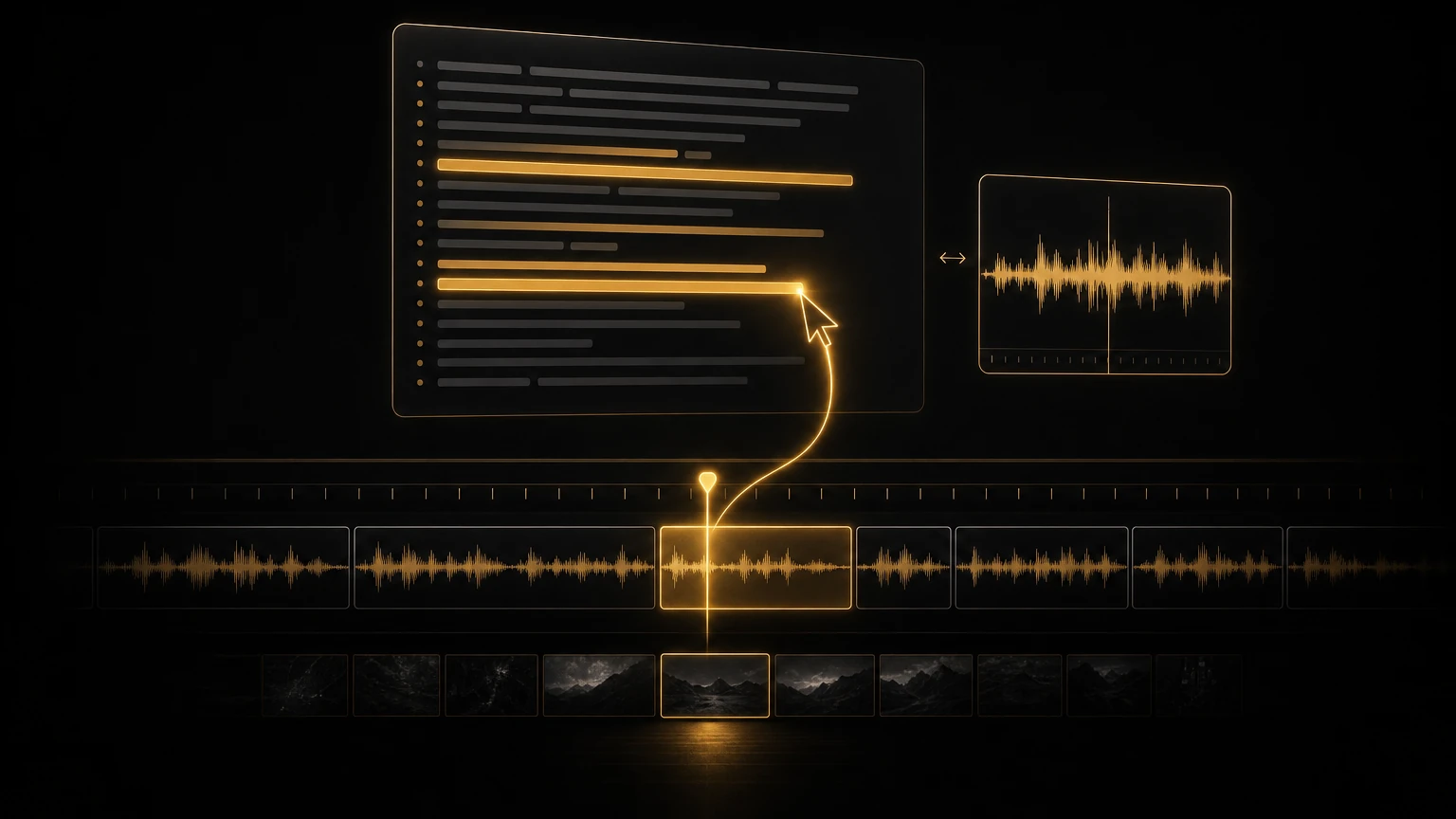
Premiere Pro has had text-based editing since the 2023 releases, and if you have not tried it, you are working harder than you need to. You import your footage, open the Text panel, and hit Transcribe. Premiere generates a transcript synced to your timeline. From there your interview exists as video and text at the same time. Highlight sentences in the transcript to create subclips. Delete text and the matching video drops from the timeline. Copy a paragraph, paste it elsewhere, and the video follows.
This changes how you find moments. Instead of scrubbing a 45 minute interview looking for where someone said "the merger," you hit Ctrl+F, type "merger," and every instance appears instantly. Click one and the playhead jumps to that exact frame. I use this on every documentary project now. My workflow looks like this:
- Transcribe all interview footage as soon as it lands. I start it immediately and let it run while I organize B-roll.
- Read the transcript like a script. No watching yet. I read, highlight, and note which sections feel like the story.
- Build a paper edit from the transcript. I copy key sections into a separate document and arrange them into a rough narrative.
- Create subclips from the highlighted sections. Premiere generates subclips straight from a text selection. These become my selects reel.
- Edit with video from the subclips. Now I am back in traditional editing mode, working with pre-selected gold instead of raw footage.
Pro tip: Text-based editing works best on clean audio. If the interview was shot in a noisy room or the subject mumbles, transcription accuracy drops fast. Run a quick noise reduction pass before transcribing. Two minutes of audio cleanup saves twenty minutes of transcript correction.
Searching Transcripts to Find What Matters
The real power of transcripts is not transcription. It is search. On that project, the producer mentioned in passing that they wanted something about the factory closure. I searched "factory" across the transcripts and found that only one subject had talked about it, briefly, deep into a long interview. Without search I might never have found it. With search I had the exact quote and timecode in seconds.
Here is what I regularly search for in transcripts:
- •Specific names or terms the client has requested
- •Emotional language, words like "struggle," "breakthrough," "failed," "proud," "afraid"
- •Numbers and data points that might be relevant
- •Questions from the off camera interviewer that reveal the structure
- •Repeated phrases, where a subject returns to the same idea, usually a sign it matters to them
I also use transcript search to find natural transition points. If I am cutting between two subjects and want a smooth handoff, I search for where both mention the same topic or use similar language. Those echoes become the J-cuts and L-cuts that feel intentional rather than forced. If you want more on that, I broke it down in my interview editing techniques.
Exporting Transcripts for Producers and Clients
Transcripts are not just for editors. They are the communication layer between you and everyone else on the project. I export them in three formats depending on who needs them.
Match the format to the person
- •Plain text for producers who want to read through and mark selects. Simple, no timecodes, easy to annotate.
- •CSV with timecodes for producers who build paper edits in spreadsheets. Each row is a line of dialogue with start, end, and speaker, so anyone can rearrange rows to test structure.
- •Visual transcript PDF with timecode markers for legal review or subjects approving their quotes. It looks professional and is easy for non-editors to reference.
The key is giving people a format they can actually use. I learned this after sending a producer a raw .srt file once and getting a confused email back asking why there were numbers everywhere.
Where Premiere's Native Transcription Falls Short
Premiere's built-in transcription is good for English and getting better. But it has real limits that matter for professional work. Language support covers about a dozen languages, so footage in Polish, Norwegian, Thai, and many others is out of luck. Speaker identification is basic and struggles with overlapping dialogue, quiet speakers, or more than two people. I have watched it merge three distinct speakers into one on group interview footage.
Accuracy on accented English varies. It handles standard American and British English well, then stumbles on heavy accents, regional dialects, and technical terminology. And there is no translation workflow. Sometimes I need a transcript in the original language and an English translation to work from, and Premiere does not offer that natively. These are not really Adobe's fault, automatic transcription is genuinely hard, but they hit my workflow every week. Which is why I started using AI Editor alongside the native tools.
Why I Added AI Editor to the Workflow
AI Editor handles transcription with support for more languages than Premiere offers natively, including Polish and others I run into constantly. In my experience it handles accents and multi-speaker interviews better too. But the feature that made me keep it is the export flexibility. It generates transcripts I can pull back into Premiere as markers, use as searchable text, or hand to producers in multiple formats, all without conversion headaches.
I do not use AI Editor instead of Premiere's text-based editing. I use it to get better transcripts into it. The combination is what makes the workflow fast. When the moments are found, I lean on Clip Exporter to batch the deliverables out the door. This is the same backbone I described in finding the story in 100 hours of footage.
Pro tip: If you deliver transcripts to clients, always include timecodes at reasonable intervals, every 30 seconds at minimum and on every speaker change ideally. Nothing frustrates a producer more than finding a great quote and having no idea where it lives in the footage. Timecodes are how non-editors speak to editors. Make it easy for them.
Building a Transcript-First Habit
If you are used to editing by scrubbing timelines, a transcript-first workflow feels weird for about two projects. Then it feels obvious. Start with one project type. Do not change everything overnight, pick interview-heavy work first since it benefits most. Action montages and music-driven pieces do not need transcripts. Use the right tool for the job.
Transcribe immediately on ingest, before you even build your project structure, so the transcript is waiting by the time you are ready to edit. Keep a template document with sections like Opening Hook, Key Quotes, Emotional Beats, Data, and Transitions, and paste relevant lines in as you read. Share transcripts with your team early, because "focus on the factory story" is far more useful than "make it more emotional." And archive the transcript with every project. Six months later, when a client asks if you have anything about the 2023 launch, you search the transcript instead of reopening a timeline.
Transcription changed how I edit because it changed how I find. Instead of hunting through hours of footage frame by frame, I read, I search, I scan. The technology handles the mechanical work of turning speech into text, and I handle the creative work of deciding what matters and how it fits together. If you still cut interviews by scrubbing waveforms and hoping you do not miss the good stuff, try a transcript-first pass on your next project. The time you save on finding moments is time you spend on the decisions that actually make the cut better.
More from the Cut to the Point blog, including the podcast editing workflow and batching social clips from one interview. When you are ready to speed up transcription and selects, take a look at AI Editor.
Share this article