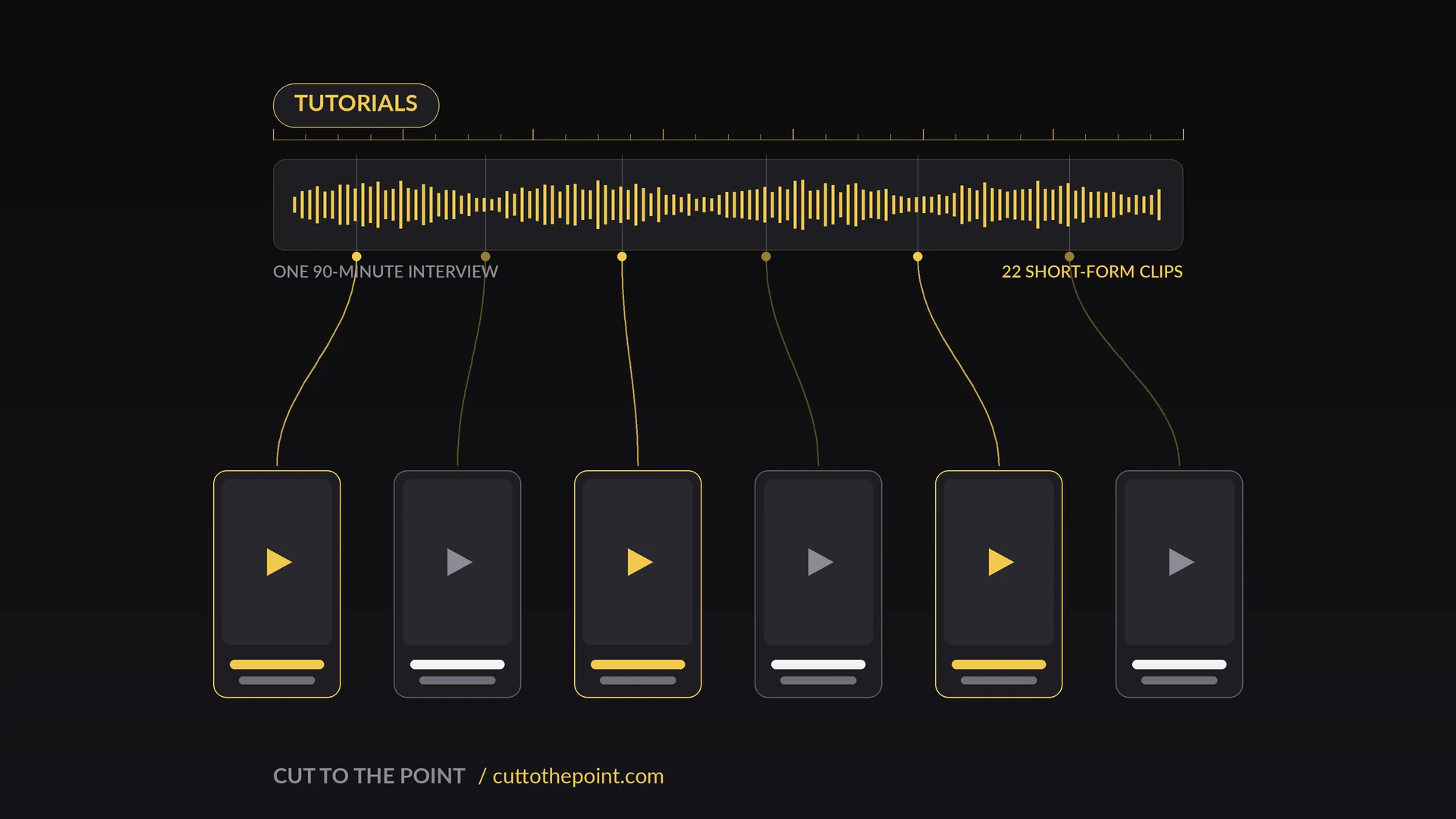
How I Batch 20 Social Clips From One Interview
I used to treat social clips as an afterthought. The client asked for a few social cuts, I went back through the finished edit, pulled whatever moments I remembered, exported them one by one, and hoped they liked my picks. They usually wanted more, I usually missed the moment they had in mind, and it always took longer than either of us expected.
Now I batch social clips as a systematic workflow instead of a byproduct. On a recent project, a ninety minute founder interview, I produced twenty two usable short form clips in under two hours from setup to export. Here is exactly how I do it.
The Mindset Shift: Social Clips Are a Product, Not a Byproduct
The biggest change was realizing social clips deserve their own workflow, not the scraps of attention left over after the main edit. Treat social content as an afterthought and you get afterthought results.
Now I plan for social during the main edit. I know I will need vertical versions, captioned exports, and multiple lengths for different platforms. Building that in from the start means I am not reinventing the process every time. It is the same template thinking I use in my project template post.
Phase 1: Finding the Moments With AI Editor
The hardest part of social clip creation has always been finding the moments, not editing them. You can spend two hours scrubbing a ninety minute interview and still miss the best line because it happened during a tangent you skipped.
How I Use AI Editor's Powerful One-Liners Prompt
I run the full interview through AI Editor with the Powerful One-Liners prompt. It hunts for punchy, shareable, emotionally charged moments. It tends to surface:
- •Hot takes and controversial opinions
- •Surprising facts or stats delivered with energy
- •Funny moments, including the host's reactions
- •Emotional beats like vulnerability, passion, and frustration
- •Clear, quotable one liners
For that ninety minute founder interview, the Powerful One-Liners prompt lifted about forty clips to higher tracks in my timeline, sorted by confidence level. I worked through them track by track, listened to each in context, and sorted them:
- •Green (keep): 18 clips that worked as standalone moments
- •Yellow (trim): 8 clips with a good core that needed tightening
- •Purple (combine): 4 multi part moments I could stitch together
- •Red (reject): the rest, which needed too much context, were not self contained, or just did not land
Manual Checks I Always Do
AI Editor finds most of the good stuff, but I still run two manual checks.
- I scan the transcript for keywords. If the founder mentioned failure, revenue, mistake, or breakthrough, I search those terms and check for a clip the AI did not score highly. Sometimes the best moment is not the loudest one. It is the quiet, honest reflection that does not trigger the algorithm the same way.
- I check the host's reactions. A great social clip is not always the guest saying something brilliant. Sometimes it is the host's face when they hear it. I scan for reaction moments and pull those separately.
The best social clips often come from the parts of an interview that feel messy: the tangents, the unexpected follow ups, the moments where someone goes off script. AI Editor's Powerful One-Liners prompt is good at finding these, but I always do a manual pass through anything that looks like an unplanned digression.
Phase 2: Quick Reframing for Vertical Video
Once I have my selections, I reframe for vertical. I deliver most social clips in 9:16 for Reels, TikTok, and Shorts, with a few 1:1 versions for feeds.
My Reframe Workflow in Premiere
- Duplicate the clip to a new sequence. I keep the original timeline intact and work on copies so I can always go back to the source to adjust an in or out point.
- Apply Auto Reframe. Premiere's Auto Reframe handles most of the work. It tracks the subject and keeps them centered in the vertical frame, which works well for talking heads.
- Make manual adjustments. Auto Reframe is not perfect. I fix moments where it crops a gesture, misses a two shot, or fails to track. That takes one to two minutes per clip.
- Check text and graphics. If the original edit had lower thirds, titles, or on screen graphics, I see how they read in vertical and reposition or redesign as needed.
When Auto Reframe Fails
- •Wide two shots where both speakers matter. I crop manually or build a split screen.
- •Screen shares or demos. These need custom framing that shows the relevant part of the screen.
- •Clips where the environment matters. Vertical cropping can destroy the shot, so I letterbox or deliver horizontal for specific platforms.
Phase 3: Adding Captions
Captions are not optional. Most social video gets watched without sound, so if a clip does not work muted, it does not work.
My Caption Workflow
- Generate captions from the transcription AI Editor already created. Since that transcript is corrected and accurate, I skip redoing speech to text.
- Apply my caption style. I use a bold, high contrast look that reads on small screens: a large sans serif font, white text with a black outline or background box, set in the lower third where it will not cover faces.
- Review and fix timing. Auto generated captions are usually close but need tweaks around cross talk, laughter, and interrupted sentences.
- Break long lines. Social captions should be short and punchy, so I split long sentences into multiple cards, usually six words or fewer each.
I keep a caption preset saved in Premiere with my exact font, size, color, and position. One click applies it to any new project. If you do social clips regularly, that small time save compounds fast.
Phase 4: Creating Variations
Not every platform wants the same thing, so I usually build three variations of a clip.
- •Full clip, 30 to 90 seconds: the complete moment with context, good for YouTube Shorts and LinkedIn.
- •Short clip, 15 to 30 seconds: the punchiest version trimmed to the essential beat, best for Instagram Reels and TikTok.
- •Supercut, 7 to 15 seconds: just the money line, maybe with a reaction shot, built for fast scrolling feeds.
I do not make all three for every clip. My top five or six get the full variation treatment. The rest get one solid version aimed at the platform the client cares about most.
Phase 5: Batch Export With Clip Exporter
Exporting twenty clips one at a time through Premiere's export dialog would drive me insane, so I use Clip Exporter to handle the queue.
How I Set Up Batch Export
- Name clips clearly in the timeline. I use GUESTNAME_TOPIC_DURATION, like SARAH_FUNDRAISING_30SEC, which becomes the export filename automatically.
- Mark in and out points for each variation on separate timelines or nested sequences.
- Run Clip Exporter. It batch exports everything with my preset settings: H.264, 1080x1920 vertical, burned in captions, and a bitrate that looks good on mobile without bloating files.
- Organize exports by platform. I create folders for Reels, TikTok, YouTube Shorts, and LinkedIn, then sort clips into them.
I also export a captions off version of every clip, toggling the caption track off and running Clip Exporter again. Some clients want clean versions for their own captioning, or for platforms where they use a different style.
The Numbers
From that ninety minute founder interview, here is what I delivered.
What I delivered
- •Full clips, 60 to 90 seconds: 8 clips, 72 second average
- •Short clips, 30 to 60 seconds: 10 clips, 45 second average
- •Supercuts, 7 to 15 seconds: 4 clips, 12 second average
- •Total: 22 clips, 44 second average
Where the time went:
- •AI Editor content review: 25 minutes
- •Reframing: 30 minutes
- •Captioning: 20 minutes
- •Variations and trimming: 25 minutes
- •Export and organization: 15 minutes
- •Total: about 1 hour 55 minutes
Under two hours for twenty two clips the client used across four platforms over two weeks. That is the kind of efficiency that makes social clip creation profitable instead of a time sink.
Quality vs. Quantity
Twenty two clips is a lot, but I am not trading quality for volume. The AI finds the moments. I still decide what works, how to frame it, what to caption, and how to pace each clip. The tools handle the mechanical work and I handle the judgment.
The result is clips that feel human because a human made the decisions. I just get to focus on the decisions instead of the drudgery of finding the moments in the first place.
If you regularly cut social content from long form interviews, pairing AI Editor for moment finding with Clip Exporter for batch delivery will change how you work. Both live on the presets and plugins page. Start with AI Editor. The Powerful One-Liners prompt alone is worth it if you do this kind of work often.
More from the CTTP blog: pair this with my podcast editing workflow and the AI Editor stringout deep dive. When you are ready to ship the files, my video deliverables guide covers the export specs.
Share this article