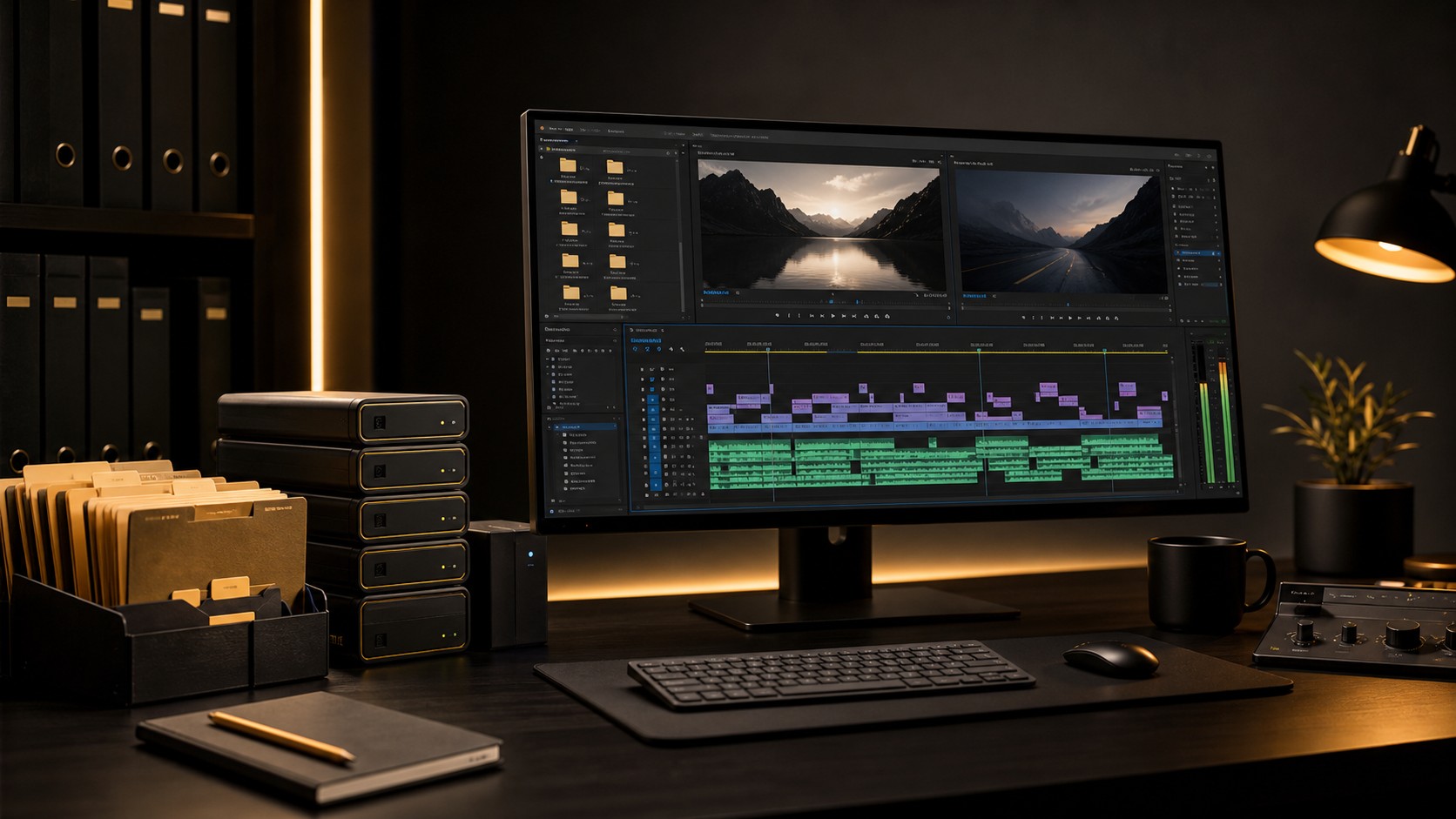
The 10-Minute Premiere Pro Project Cleanup Routine
I opened a project folder last month and found 47 sequences. Forty-seven, for a three minute brand film. The names were a graveyard of abandoned ideas: Edit_v3_OLD, Final_Final_Tues, Final_FOR_REAL, and my personal favorite, FINAL_MASTER_v14_APPROVED, which was of course not the approved version. Finding the real master took fifteen minutes of checking timecodes against the exported file, and that mess was entirely my own doing.
So that afternoon I built a cleanup routine. Not a once a year deep clean that never actually happens, but a 10 minute protocol I run at the end of every project, and sometimes mid project when things get unwieldy. It changed how I work. This post is that protocol, step by step, with a checklist you can steal at the bottom.
Why Cleanup Matters More Than You Think
Disorganized projects cost you money in ways you do not notice. The five minutes you spend hunting for the right sequence does not feel like a big deal in the moment. But do that three times a week for a year and you have lost a full workweek to digital housekeeping. That is a vacation you did not take, or an invoice you did not send.
Worse, disorganization creates errors. I once delivered a rough cut to a client because I exported from Edit_v6 instead of Edit_v6_LOCKED. They saw ungraded footage, temp music, and a gap where a graphic was supposed to be. I looked unprofessional because my project was a mess. Clean projects also archive better. When a client comes back six months later asking for a quick change, a clean project opens in 30 seconds and makes sense. A messy one requires archaeology. The same thinking drives my project template for every edit, which front loads the structure so cleanup is fast.
Phase 1: Sequence Purge (2 minutes)
This is the fastest phase and the most satisfying. We are deleting sequences that serve no purpose. First, find the sequence that matches your approved master file. Check the timecode, the cut points, and the graphic layers. This is your source of truth. Then go through the Project Panel and delete the obvious trash:
- •Any sequence with OLD, TEMP, TEST, TRY, or DRAFT in the name, unless it is a version the client specifically approved mid process.
- •Duplicate sequences that are clearly abandoned experiments. Made a Jazz_Music_Alt sequence and never reopened it? Delete it.
- •Auto saved sequence versions Premiere created. Keep the last two or three if you are paranoid. The rest go.
For the remaining sequences, establish a clear version history. My naming convention puts the date first so it sorts chronologically, then a version number that increments with every major round, then a descriptor of the edit state:
Sequence naming convention
- •YYYYMMDD_PROJECT_v01_ROUGH_CUT
- •YYYYMMDD_PROJECT_v03_CLIENT_NOTES
- •YYYYMMDD_PROJECT_v05_PICTURE_LOCK
- •YYYYMMDD_PROJECT_v07_FINAL_APPROVED
If a client asks you to just try a significant structural change, duplicate the locked sequence first, name the duplicate with today's date and what you are testing, then make your changes. If it does not work, delete the duplicate and you are back to the approved version with zero stress. The duplicate is a sandbox, not a commitment.
Phase 2: Media Audit (3 minutes)
Now we deal with the footage. Premiere projects accumulate unused media like boats accumulate barnacles, so let us scrape them off. In the Project Panel, click the List View button, right click the header row, and make sure the Video Usage and Audio Usage columns are visible. These show how many times each clip appears in any sequence.
Sort by Video Usage. Everything with a 0 is unused. Select all the zero usage clips and delete them, choosing Remove from Project rather than moving the actual media to trash. This one step usually clears 30 to 50 percent of the clips and makes the panel navigable again. Next, look at the Status column for anything marked Offline. Relink it (Project > Link Media) if the file moved, or remove it if you deleted the source and do not need it. Offline clips are landmines: they cause export errors and panic when you reopen the project months later.
Finally, consolidate everything to one location. Projects often reference media from four or five places at once, which means any disconnected drive breaks the project and every archive turns into a scavenger hunt. Use File > Project Manager:
- Select your final approved sequence from the list on the left.
- Check Collect Files and Copy to New Location.
- Choose Create New Trimmed Project to save space, or Create New Project to keep full clips with handles intact for future edits.
- Set a destination folder. I use one called 02_CONSOLIDATED inside the project.
- Include preview and audio conform files for faster reopens, or skip them for a smaller archive.
- Click Calculate to preview the size, then OK to run.
This copies every file your sequence needs into one folder and creates a fresh project that references only those files, leaving your original untouched. It is the safest way to build an archive ready package. If your handoff also involves exporting individual graded clips, the Clip Exporter panel keeps those exports named and organized so they do not become the next mess.
Phase 3: Folder Structure (2 minutes)
A clean Project Panel matters as much as a clean desk. Mine follows a rigid bin structure I replicate for every project, created with the Bin button at the bottom of the panel:
Standard bin structure
- •00_SEQUENCES, 01_VIDEO, 02_AUDIO, 03_MUSIC
- •04_SFX, 05_GRAPHICS, 06_EXPORTS
- •07_REFERENCES, 08_ARCHIVE
Drag every asset into its bin. The 06_EXPORTS bin gets dated sub bins like 2026_01_15_v01, so I can always find the exact file I sent a client on a given date even when my Finder window is chaos. The 90 seconds of sorting saves cumulative hours of scrolling.
Phase 4: Archive Preparation (3 minutes)
The last phase makes sure this project can sleep for six months and wake up intact. Build an archive folder on the drive with the consolidated project, the source media, the exports, and the supporting documents grouped together. The single most useful file in it is a plain text ARCHIVE_NOTES that records:
- •Project name, client, and the final approved version number and date.
- •Where the master export lives and the specs it was rendered with.
- •Known issues or caveats, like a music license expiry or a noisier backup mic take.
- •The location of any raw camera backups not included in this archive.
Before you close out, verify the archive: open the consolidated project (not your working copy), confirm no media is offline, and play the first and last 10 seconds of the final sequence. Check that the export in the folder plays and matches. Only once it checks out do I delete the working files from my fast SSD, keeping the last two or three active jobs local and moving everything older to slower storage.
I keep a PROJECT_LOG spreadsheet with one row per project: name, client, date completed, archive location, final version, and whether revisions are likely. When a client calls, I search the spreadsheet before I search my drives. Ten seconds to know exactly where everything lives.
The Mid-Project Cleanup
Sometimes you cannot wait until the end. For a project that gets messy mid edit, I run a light version: duplicate and rename the active sequence with today's date, delete sequences more than two versions old, sort the panel by usage and stash unused clips in a bin called _UNUSED, then spend 60 seconds dragging clips into their proper bins. Two minutes, and the project feels manageable again. I do this every few days on long form jobs, which keeps the final cleanup from becoming a two hour dig.
The 10-Minute Checklist
Project cleanup checklist
- •Sequence purge: confirm the master, delete trash sequences, rename survivors, keep three to five.
- •Media audit: List View on, usage columns enabled, delete zero usage clips, relink or remove offline media, run Project Manager.
- •Folder cleanup: build the 00 to 08 bins, file every asset, date your export sub bins.
- •Archive prep: copy project, media, and exports across, write ARCHIVE_NOTES, verify offline status, spot check the sequence, clear the working drive.
The Real Reason to Stay Organized
Here is what nobody tells you: clean projects change how clients perceive you. Share your screen during a review and a grid of neatly labeled bins says professional. Forty sequences named edit_try3_better and media scattered across five drives says chaos, even if the edit is brilliant. Organization is a trust signal, and trust is what gets you hired again. Start with one project, run the checklist, and in a month it will be automatic.
More from the CTTP blog: pair this with my project template for every edit and the proxy workflow. When it is time to ship, Clip Exporter keeps your exports named and organized from the start.
Share this article