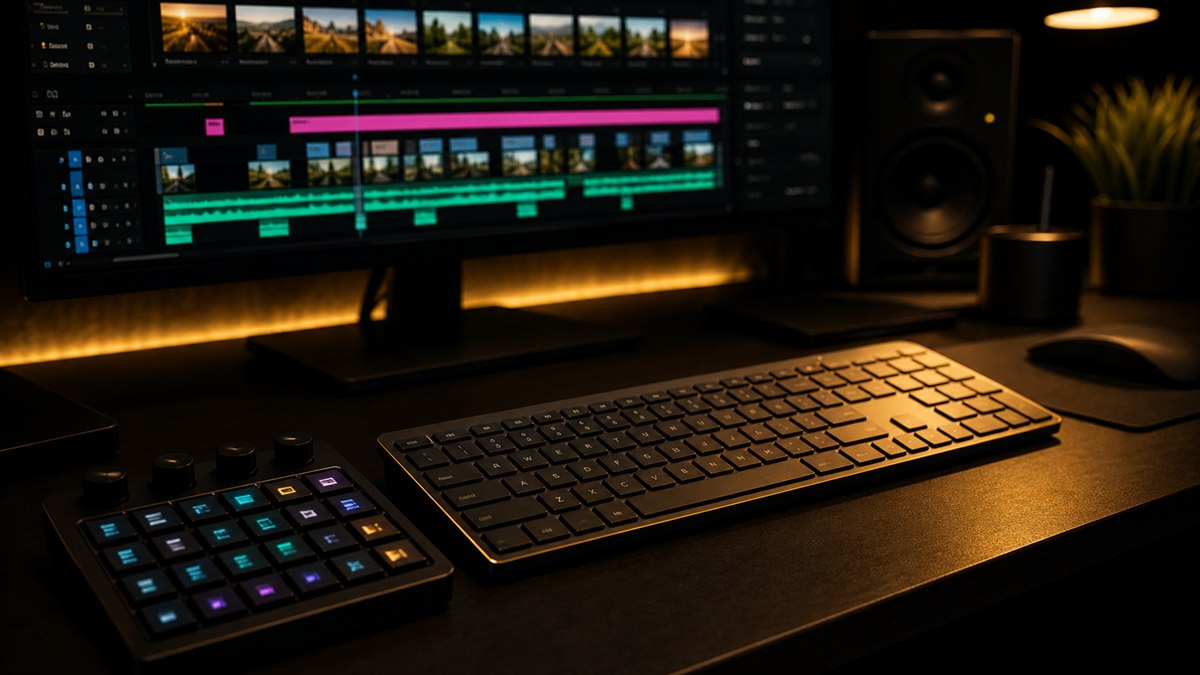
Premiere Pro Keyboard Shortcuts That Save Me 2 Hours a Week
A few years back I sat next to an editor who never touched his mouse. He would grab it occasionally for a fine drag in the color picker or for effect controls, but during the actual edit his hands never left the keyboard. He moved through timelines like he was playing an instrument, and the whole thing looked like a magic trick.
I asked him how long it took to get that fast. He said it took a while to stop thinking about the shortcuts, and even longer before they felt like part of his hands.
I have been obsessed with keyboard efficiency ever since. Not the obvious shortcuts. Everyone knows J K L and I O. I am talking about the buried commands, the ones with no default binding, the ones that separate fast editors from frustrated ones. By my rough tracking these save me about two hours every week. Over a year that is two full work weeks I get back. If random freezes are also stealing your flow, my notes on why Premiere Pro crashes pair well with everything below.
The Mapping Philosophy: Build a System, Not a Collection
Before I get to the specific shortcuts, here is the philosophy. Your keyboard map should be a system, not a random pile of commands. Every key should have a logic to it.
I organize my shortcuts by finger region and by editing phase:
- •Left hand, home row. Navigation and playback, the keys I hit a hundred times an hour.
- •Left hand, reach keys. Editing operations like ripple delete, extend edit, and match frame.
- •Right hand. Marking, track targeting, and tool switching.
- •Modifier keys. Shift, Alt or Option, and Ctrl or Cmd carry secondary functions related to the unmodified version.
So when my left index finger hits D for ripple delete, my brain already knows that Shift+D is extract because they are related operations on the same key. I do not have to look. I do not have to think. My hands just know.
The Hidden Gems Worth Mapping Immediately
These are commands that have no default binding, or have one that is awkward, and they deserve a prime spot on your keyboard.
1. Extend Selected Edit to Playhead (E)
This is my most used custom shortcut by a wide margin. It takes the edit point you have selected (with the selection tool or by rolling over it with the trim tool) and snaps it to wherever the playhead is. No dragging, no precision mouse work. Park the playhead where you want the cut, hit E, and the edit moves there. I map this to E because my left middle finger rests there and I use it constantly during fine cuts. Set it in Edit > Keyboard Shortcuts, search for "Extend Selected Edit to Playhead".
2. Select Clip at Playhead (Shift+S)
Instead of clicking on a clip to select it, this command selects whatever clip is under the playhead on the targeted tracks. I follow it with other commands, delete, ripple delete, copy, whatever fits. I map this to Shift+S because S already lives in my select family.
3. Match Frame (F)
Match Frame opens the master clip in the Source Monitor parked at the exact frame the playhead is on in the timeline. If you have ever wondered what take a clip is from, or how much handle you have on a shot, match frame answers in a single tap. My left index finger hits it without moving.
Pro tip
Match Frame works on partially used clips too. Park the playhead on any clip, hit F, and the Source Monitor shows the original master with In and Out marks around the section you are using. To see how much extra footage you have before the In point, press Q (or whatever you have mapped to go to In point) in the Source Monitor. It is the fastest way to check handles without hunting through bins.
4. Reveal in Project (Shift+R)
You are on a clip in the timeline. You need to find it in the Project panel to check duration, swap in an alternate take, or grab a file path. Reveal in Project does exactly that. I map it to Shift+R and use it dozens of times per project.
5. Add Edit (C)
Add Edit slices every clip under the playhead on targeted tracks. It is the blade tool without switching tools. I use this constantly for inserting cuts before transitions or splitting clips for speed ramps. C is easy to reach and easy to remember (C for Cut).
6. Apply Video or Audio Transition (Shift+T and Alt+T)
These apply your default transition (usually a cross dissolve for video and a constant power crossfade for audio) at every edit point on targeted tracks where clips touch. Select a range, hit the shortcut, and every cut in that range gets dissolved. Be careful, it is powerful and easy to overuse, but for interviews and documentary B roll it saves enormous time.
7. Extract (Shift+X)
Everyone knows ripple delete. Extract removes the selected section and closes the gap regardless of which tracks are targeted. Think of it as a delete this section from all tracks command. I use it when I need to remove a chunk of timeline and have everything above and below close up at once.
8. Go to Next or Previous Edit Point (Up and Down arrows)
These are default shortcuts, but a surprising number of editors do not use them. Up jumps the playhead to the previous edit, Down to the next. Combined with I and O for marking, you can mark entire clips without ever touching the mouse. My typical pass looks like this: Down to a cut, Shift+Right to nudge one frame into the new clip, I to mark In, Down to the next cut, Left arrow one frame back, O to mark Out, then extract or lift, then repeat.
9. Nudge Clip Selection (Comma and Period with modifiers)
Select a clip and hit Comma or Period to nudge it one frame left or right. Add Shift to nudge by five frames. Add Alt or Option to nudge the contents of the clip without moving the clip itself (a slip). Add Ctrl or Cmd to nudge the adjacent edit point (a slide). That is four functions on two keys, and the one frame and five frame versions get the most mileage.
10. Zoom to Sequence or Frame (Backslash)
Backslash toggles between fitting the entire sequence in the timeline view and zooming back to your previous detail level. I use it as a quick overview button when I need to see the whole edit, then hit it again to drop back into the working magnification.
How to Build a Portable Shortcuts File
Your keyboard map should travel with you. Here is how I set it up.
- Export your shortcuts. Edit > Keyboard Shortcuts > Save As. Give it a clear name like Piotr_Premiere_2026.kys.
- Store it in the cloud. I keep mine in Dropbox. Every machine I touch has Dropbox installed.
- Import on new machines. Edit > Keyboard Shortcuts > Import, point at the cloud folder, load the file.
On Windows, Premiere stores shortcuts under Users, Documents, Adobe, Premiere Pro, the version folder, then Profile and Win. On Mac the path is the same under Documents inside your home folder, ending in Profile and Mac. I keep a small batch file on Windows and a shell script on Mac that copies my .kys from Dropbox to the right folder. One double click and my entire shortcut system is live.
Pro tip
If you work on locked down systems or in post houses, carry your .kys file on a USB drive. Premiere can load shortcuts directly from external media, so you do not need to copy them to the system folder. Just import from the USB on launch. It takes ten seconds and turns a foreign machine into something your hands recognize.
The Essential Motion Complement
Shortcuts handle navigation and operation. The other half of editing speed is having assets ready to deploy. For common motion graphics like lower thirds, titles, and basic animation, I keep Essential Motion 3.1 installed. It is a free pack of Premiere Pro motion graphics templates that drop directly onto the timeline and customize through the Essential Graphics panel.
The combination works like this. I navigate to the insertion point with keyboard shortcuts, drag in an Essential Motion template, and adjust the text and timing without reaching for the mouse for navigation. Keyboard for speed of movement, drag and drop templates for speed of assembly. That is where the two hours a week actually come from, not from any single shortcut but from the combination of fast navigation and instant graphics deployment. The wider presets and plugins lineup slots into the same pattern.
Building Muscle Memory: The Two Week Plan
If you remap your entire keyboard in one sitting, you will be miserable for a week. Here is the approach I use with editors in my consultations and mentorship program.
Week 1. Map five shortcuts. Just five. Use them exclusively. Tape a cheat sheet to your monitor. The five I recommend starting with are Extend Selected Edit (E), Match Frame (F), Select Clip at Playhead (Shift+S), Add Edit (C), and Reveal in Project (Shift+R).
Week 2. Add five more. Zoom shortcuts, nudge commands, and the extract or lift pair. By now the first five should already feel automatic.
Week 3 and beyond. Add as needed. Every editor works differently. I lean on match frame because I do a lot of documentary work where I am checking handles and finding alternates. A narrative editor might prioritize trim mode shortcuts instead. Build the map for your work.
My Full Shortcut Map
For anyone who wants a starting point, here is my current map. Steal what works and ignore the rest.
- •A sets Track Select Forward.
- •C sets Add Edit.
- •D sets Ripple Delete.
- •E sets Extend Selected Edit to Playhead.
- •F sets Match Frame.
- •Q sets Zoom In.
- •W sets Zoom Out.
- •Shift+A sets Toggle Target Video 1.
- •Shift+D sets Extract.
- •Shift+S sets Select Clip at Playhead.
- •Shift+R sets Reveal in Project.
- •Shift+T sets Apply Video Transition.
- •Alt+T sets Apply Audio Transition.
- •Shift+Comma sets Nudge Clip Left 5 Frames.
- •Shift+Period sets Nudge Clip Right 5 Frames.
- •Backslash toggles Zoom to Sequence and Zoom to Frame.
I keep J K L, I and O, Spacebar, and the arrow keys in their default configuration. There is no reason to remap what is already perfect.
"The shortcuts themselves are not the point. The point is flow. When your hands know where to go without consulting your brain, editing stops being a technical exercise and starts being creative."
- Piotr Toczynski
The Real Secret
That London editor I watched was not fast because he knew shortcuts. He was fast because the shortcuts had become invisible, and all his attention was on the edit itself. That is the goal. Two hours saved per week is nice, but the real payoff is the quality of those other six hours, when you are fully present in the creative work instead of fighting your tools. Start with five shortcuts. Give it two weeks. Your hands will do the rest.
Want more like this? Browse the CTTP blog, grab Essential Motion 3.1 for free, and pair these shortcuts with the Ultimate Presets for a faster cut.
Share this article