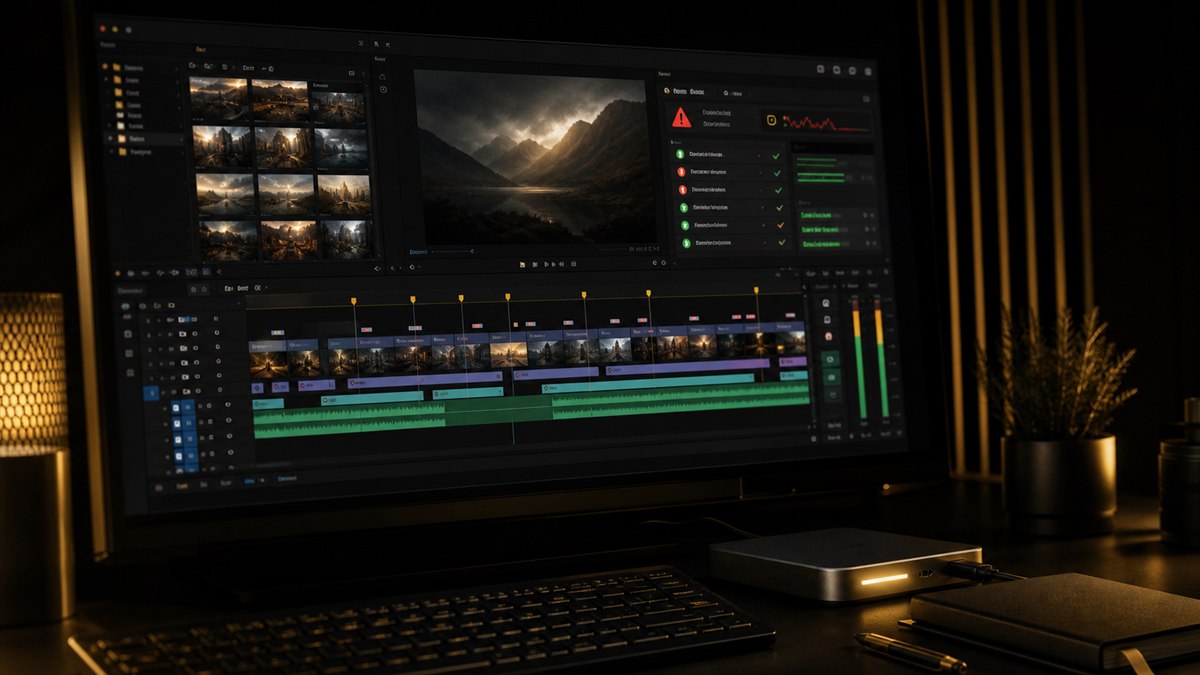
Why Your Premiere Pro Project Crashes (And the 7 Habits That Stop It)
I was three hours into a color pass last month when Premiere Pro vanished. No error dialog, no spinning wheel, just gone. Auto-save had my back, but I still lost twelve minutes of work. Twelve minutes does not sound like much until you are rebuilding a detailed grade from memory.
Here is the reality: Premiere Pro crashes are almost never random. They have specific, identifiable causes. After years of dealing with them, I have built a set of habits that took my crash rate from frequent to rare. These are not magic fixes. They are workflow discipline. If you want the broader picture, my guide on making Premiere Pro bulletproof pairs well with everything below.
Habit 1: Treat Your Media Cache Like a Litter Box
Premiere's media cache holds preview files, peak files, conformed audio, and index files. Left alone it grows like a digital tumor, and corrupted cache files make Premiere actively unstable. You get playback glitches, audio dropouts, and crashes that look like bugs but are really Premiere choking on bad cache data.
My fix: point the cache at a fast secondary drive, never the boot drive and never the same drive as your project files. Open Edit > Preferences > Media Cache, set a dedicated folder on an NVMe or fast SSD, then turn on automatically delete cache files older than 7 days. Every Monday I clear the whole folder manually. It takes thirty seconds and it is the first thing I do when Premiere starts acting weird.
Habit 2: Auto-Save Is Not a Backup Strategy
Premiere defaults to saving every 15 minutes and keeping 20 versions. For anything complex that is a joke. I have run every 3 minutes, 50 versions for over a decade. Yes, you get brief pauses while it saves. The pause is shorter than rebuilding fifteen minutes of work.
The bigger point: auto-save files live in your project folder. If that drive dies, your auto-saves die with it. I run two tiers, auto-save for the "oops I crashed" moments and a cloud sync tool for the "my drive died" moments. Every project folder syncs to the cloud before I import a single clip, not after.
Habit 3: Know Your Enemy Codecs
Some codecs are crash magnets, not because they are bad but because Premiere struggles with them under stress.
- •H.264 and H.265 from cameras are delivery codecs, not editing codecs. Temporal compression forces Premiere to calculate several frames just to show one. Stack that across multicam and you are asking for trouble.
- •Variable frame rate footage from phones, screen recordings, and some drones will wreck a project silently. Always transcode it to a constant frame rate before import.
The rule: if a codec was not built for editing (ProRes, DNxHD/HR, CineForm), transcode before you cut. It costs time upfront and saves far more on the back end when your project does not implode during client playback.
Habit 4: Plugins Are Guilty Until Proven Innocent
I once had a project that crashed every time I opened one sequence. Two hours of troubleshooting later, the culprit was a third-party transition plugin that had auto-updated in the background with a bug. My rules now: keep a list of every plugin and version, turn off auto-updates, test updates on a throwaway project first, and when you are crashing, hold Shift while launching to disable third-party plugins and narrow it down.
Before installing any plugin, check whether Premiere already does the job. Between Essential Sound, Lumetri, and the built-in transitions, most of what editors reach for is already in the box. Every plugin you skip is a crash vector you remove.
Habit 5: Clean As You Go
The bigger a project gets, the more unstable it becomes. Projects with dozens of sequences, hundreds of unused clips, and nests inside nests crash more often. Every Friday I delete unused clips (turn on Video and Audio Usage columns in the project panel), consolidate duplicate imports, flatten unnecessary nests, archive old version sequences into an _Archive bin, and save a fresh copy with _CLEAN appended.
Habit 6: The Export Queue Is a Crash Waiting to Happen
Media Encoder is fine for one or two exports. Load it with five or six complex jobs reading the same source files at once and it locks up. The fix is sequential, not parallel: set In/Out points for each deliverable and export one at a time so your drive is not serving six outputs simultaneously.
On big delivery days I lean on Clip Exporter, a batch tool that marks your sequences, sets specs once, and handles the queue without the instability of an overloaded Media Encoder. One more rule: never export to the same drive your media lives on. Separate read and write onto different drives and a whole class of "random" export crashes disappears.
Habit 7: Know When to Start Fresh
Sometimes a project file is simply broken. The project format is a database, and databases corrupt. You know it is the project, not the software, when a new project runs fine, other editors hit the same crash on the same file, and clearing cache and updating plugins changes nothing.
- 1. Create a brand new project with the same settings.
- 2. Use File > Import to bring in the sequences you need from the old project while it stays closed.
- 3. Premiere carries over the edits, effects, and media links intact.
- 4. Save under a new name and test. Nine times out of ten this fixes unexplainable crashes.
When Prevention Fails
Even with all of this, crashes happen. Do not panic-relaunch. Wait thirty seconds, open the most recent file in the Adobe Premiere Pro Auto-Save folder rather than the original, and if it opens stable, immediately Save As with a new name. If it crashes again on the same sequence, rebuild with the import trick above. If a single clip is the trigger, check it for corruption and transcode it.
Wrapping Up
Premiere Pro is complex software pushing enormous files in real time. Crashes are a symptom of workflow stress, not a character flaw. You do not need all seven habits at once. Start with cache management and auto-save settings today, then add the rest as they fit. Stability is built one habit at a time.
Want a calmer, faster timeline to go with a stable one? Browse the CTTP presets and plugins or read more on the CTTP blog.
Share this article